 Stopia
How to Host a 10-Second Challenge at Your Event — From Setup to Script
The 10-second challenge takes ten seconds to explain and anyone can have a go, which is why it works so well as an icebreaker or party game. Run it on the fly, though, and things go wrong fast: the screen is too small, the line gets long, or two people tie and nobody knows what to do. Here is what to decide in advance when you host it with Stopia.
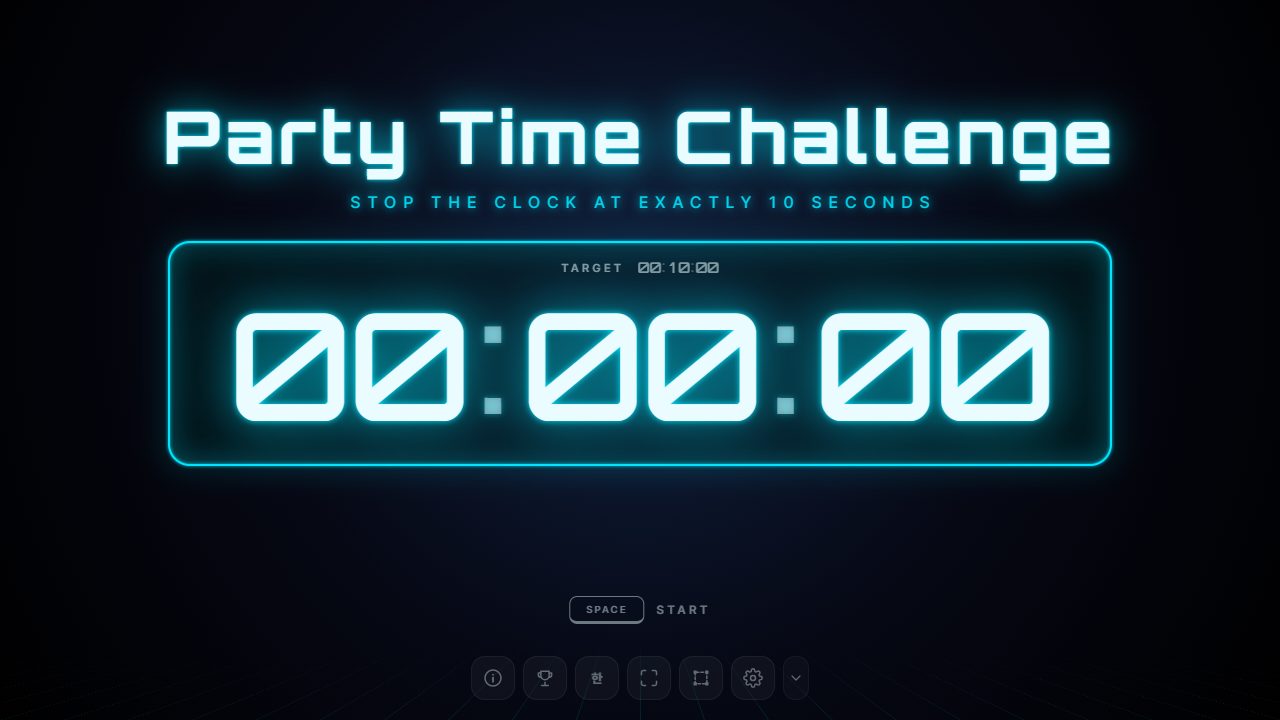
1. What you need
- One laptop: All you need is a browser. Nothing to install, so a borrowed venue PC works fine.
- A projector or large screen: The game is only fun if the whole room can see the timer.
- A button to press: The laptop's SPACE key works, but if you don't want players crowding around the laptop, plug in a wireless keyboard or USB gamepad and put it at the front. Gamepad buttons start and stop the timer too.
- Speakers: The start, success and fail sounds are what get the crowd reacting. Built-in laptop speakers are almost inaudible in a hall.
- Prizes: A small treat for every success gets far more people to try than a single grand prize.
2. How long will it take?
From walking up, pressing the button and seeing the result to walking back, each turn usually takes 25–40 seconds, even with a 10-second target. Introductions, walking and cheering all add up. Use this as a rough guide:
| Players | One turn each | Suggested format |
|---|---|---|
| Up to 10 | About 5 min | Everyone gets 2–3 tries, best result counts |
| 10–30 | 10–20 min | One try each as a qualifier, then a final for the top 3–5 |
| 30+ | 20+ min | One representative per team, or run it as a drop-in booth during breaks |
To keep things moving, turn on Automatically go to the next round in Settings › Game. A few seconds after each result the screen resets by itself, so the host never has to touch the laptop.
3. Setting the difficulty
The sweet spot for a party game is when some people succeed but not everyone. If nobody wins it gets boring quickly; if everybody wins there is no tension.
- Qualifiers: Set a generous tolerance of 3–5% of the target. At 5% on a 10-second target, anything from 9.50 to 10.50 seconds counts. Roughly one in three or four first-timers will make it.
- Final: Tighten it to 1% (9.90–10.10 seconds), or turn on Strict judging so only exactly 10.00 wins.
- Blind mode: The clock disappears after a few seconds. With the clock visible people can just watch the numbers; once it is hidden, it is pure instinct. Perfect for the final.
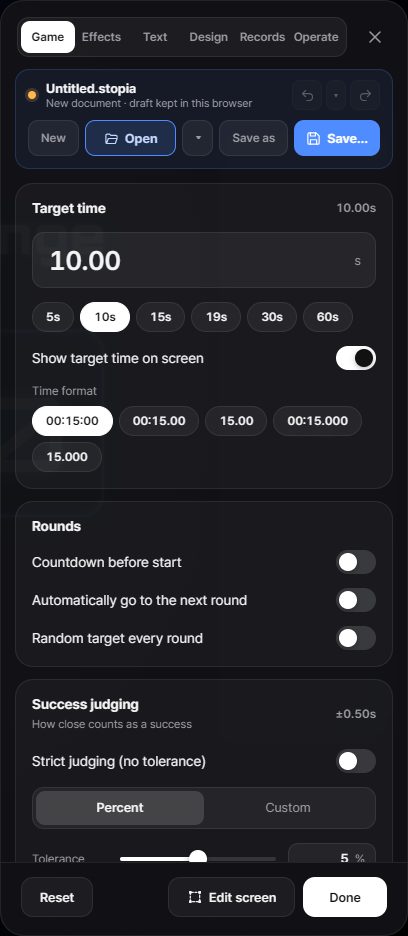
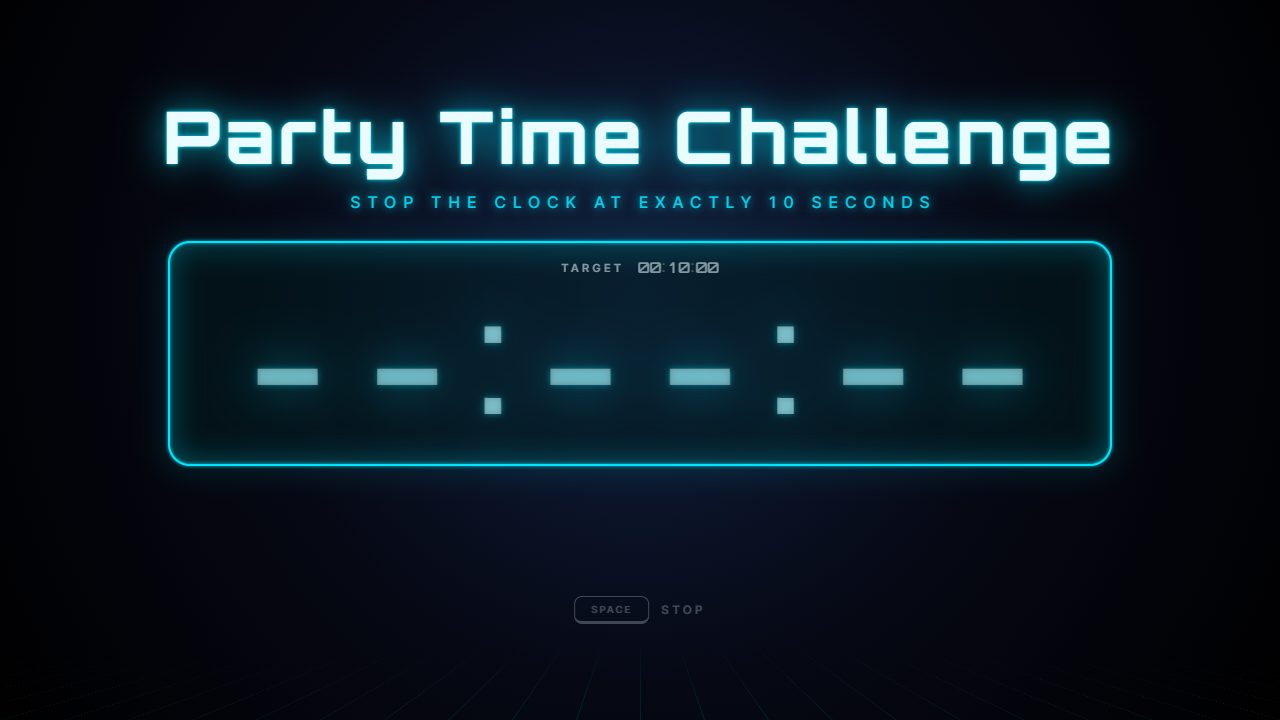
If the target is always 10 seconds, later players get to learn from watching earlier ones. To keep it fair, turn on Random target every round in Settings › Game so the target changes each time.
4. Rankings and tie-breakers
With lots of players it's easy to lose track of results on paper. Enter each player's name in Settings › Records before their turn and the name is saved with the result. Press L to bring up the ranking screen for the prize-giving. Afterwards you can export everything as a CSV file for Excel or Google Sheets.
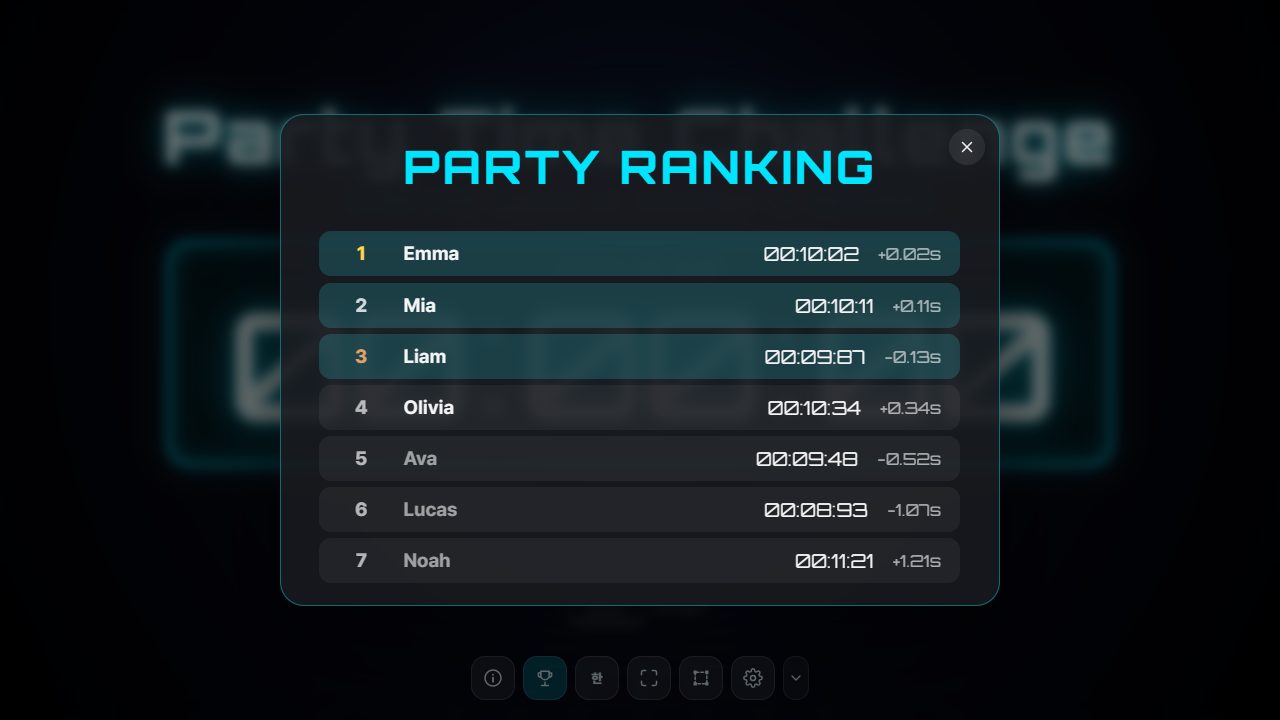
Stopia judges to 1/100 of a second, so ties in the qualifiers happen more often than you'd think. Decide on a tie-breaker in advance and announce it at the start.
- Rematch: The tied players go again in blind mode. The cleanest option.
- More precision: Switch the time format to 1/1000 of a second and judging follows, which makes ties very rare.
- Earlier player wins: Quick when you're short on time, but players may feel it's unfair.
5. Making it feel like a show
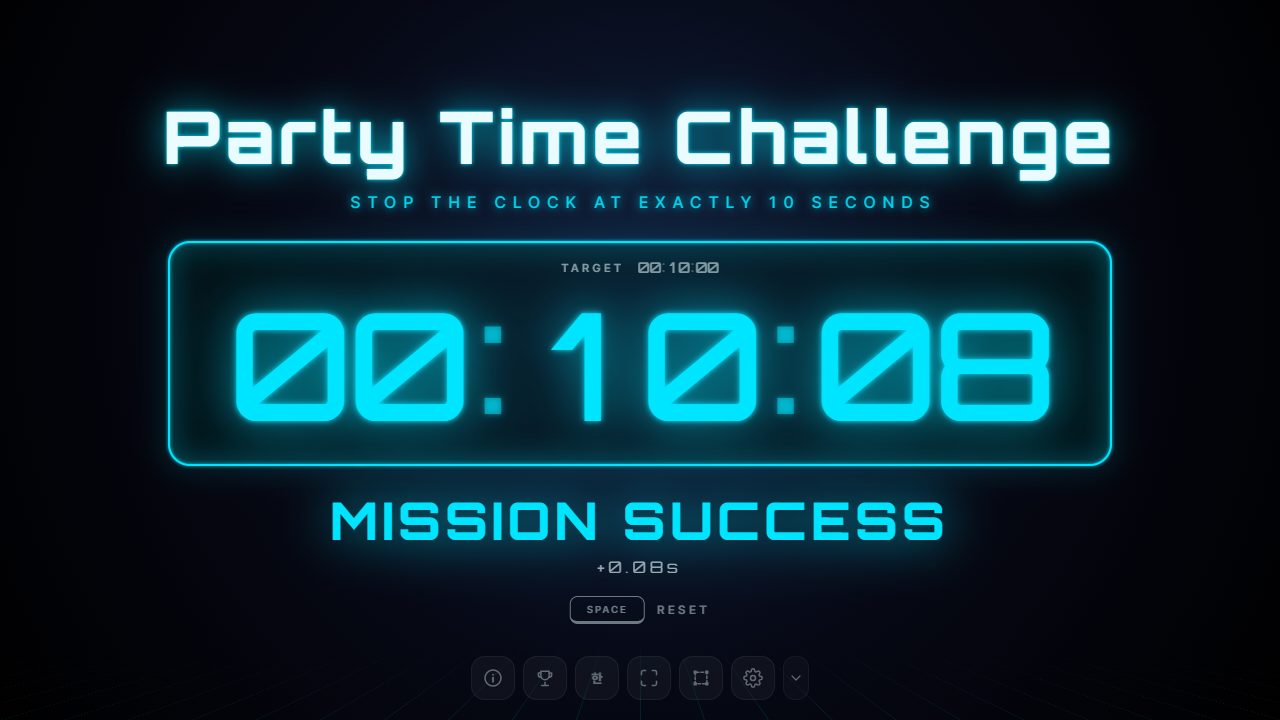
- Change the title: In Settings › Text, rename the game after your event, such as "Sales Team Party Time Challenge". Seeing their own event on the big screen gets people paying attention.
- Add a logo: Use the screen editor to drop in your company or club logo.
- Dramatic reveal: Instead of showing the result instantly, Stopia pauses for a beat before revealing it. That moment of silence makes the reaction much bigger.
- Countdown: A 3-2-1 before the start gives the player a moment to get ready, and the audience will count along.
6. Pre-show checklist
Most hiccups at events come from the laptop, not the game. Check these before you start:
- Have you turned off sleep and screen timeout? A blank screen mid-game kills the mood.
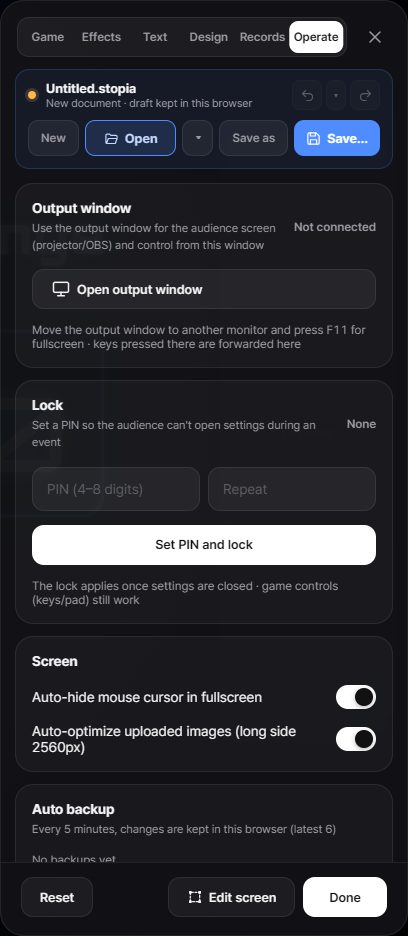
- Have you set a PIN lock? Lock it in Settings › Operate and nobody can change the settings by accident. The game controls keep working.
- Is the game in fullscreen? A visible address bar and tabs look messy on a projector.
- Have you checked the volume?
- Have you saved your setup as a
.stopiafile? If you end up on a different PC, just open the file and everything comes back.
If you want to run the game from your laptop while the audience sees only a clean screen, use the output window. Open it from Settings › Operate and drag it to the projector display; it shows only the game, without the settings panel or menus. See the guide for details.
7. A host script you can read out
[Rules]
"Time for the 10-second challenge! Press the button and the clock starts counting up from zero. Press it again when you think exactly 10 seconds have passed."
"Stop anywhere between 9.5 and 10.5 seconds and you win. But watch out: the clock might disappear halfway through, so don't rely on it!"
[Introducing a player]
"Our first challenger is ___! Feeling confident? Everyone, give a round of applause if you think they'll make it!"
[After the result]
Success: "Wow, 10.02 seconds! Just two hundredths off! That's the top score so far!"
Fail: "11.8 seconds… you got a bit too relaxed once the clock vanished. Next player, maybe hurry up a little!"
[Before the final]
"Now for the final with our top three. This time you have to stop within a tenth of a second, and the clock disappears after three seconds."
A quick comment on each miss gives the next player a hint and keeps the audience comparing results. Announcing that the final is harder builds even more tension.
Wrapping up
The 10-second challenge is easy to set up, but the hosting is everything. Decide the format for your group size, the difficulty and the tie-breaker in advance and you'll rarely be caught off guard. And do a quick rehearsal on the actual screen the day before.